Same Size as Last Time, but Smaller? How to Size Artwork Correctly in the Gang Sheet Builder
“I ordered the same size logo as last time, but the writing came out smaller?” The usual culprit is transparent pixels around your artwork. Here’s how to trim that invisible padding in Photoshop, why SVGs upload small, and why exporting as PNG gives you the right size every time.
From time to time — not often, but it happens — we get a message like this:
“I’m sure I specified the same size logos as I ordered before. The big logo is exactly the same — but the writing in the arch is smaller?”
If that sounds familiar, the good news is your artwork is fine and so is the builder — the difference comes down to one invisible thing: transparent pixels around your design. Let’s explain what’s happening and exactly how to fix it in about a minute.
Why two “same size” files can print at different sizes
When you set a width in the gang sheet builder, it scales the entire image file to that width — not just the part you can see. If your file has a big transparent margin around the artwork, a good chunk of that width is spent on empty space, so the visible design shrinks to fit.
This is why your big logo looked perfect but the arched text came out smaller: the two files almost certainly had different amounts of transparent padding around the design. Same file dimensions on paper — different visible size once placed.
How to fix it in Photoshop (Image > Trim)
Trimming removes the empty transparent border so your canvas hugs the artwork. It takes about 30 seconds.
Open your artwork on a transparent background
Your design should sit on the checkerboard (transparent) layer, with no locked background. You’ll usually see lots of empty space around it — that’s the padding we’re about to remove.
Go to Image > Trim…
In the top menu, open Image and choose Trim…
Choose “Transparent Pixels” and tick all four sides
In the Trim dialog, set Based On: Transparent Pixels, and under Trim Away tick Top, Bottom, Left and Right. Click OK.
Your canvas snaps tight to the design
The transparent border disappears and the file now contains only your artwork — no invisible margin. This is the file the builder can size accurately.
Export as PNG (300 DPI, no anti-aliasing), then upload & size it
Save a copy as a PNG at 300 DPI with anti-aliasing turned off, so the edges stay crisp and clean rather than soft and semi-transparent. Upload it to the gang sheet builder and set your width. Now the number you type is the true size of the visible design — so your second order matches your first.
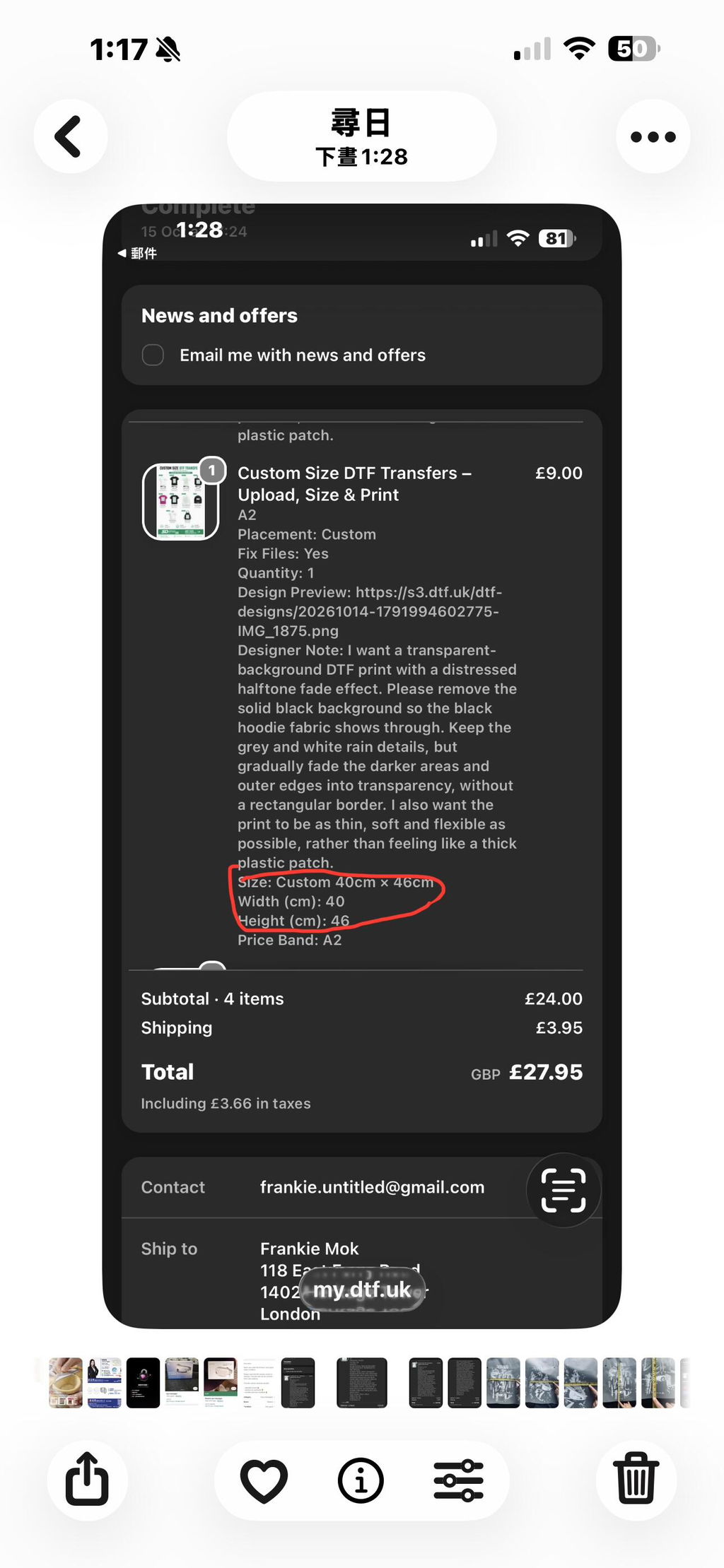
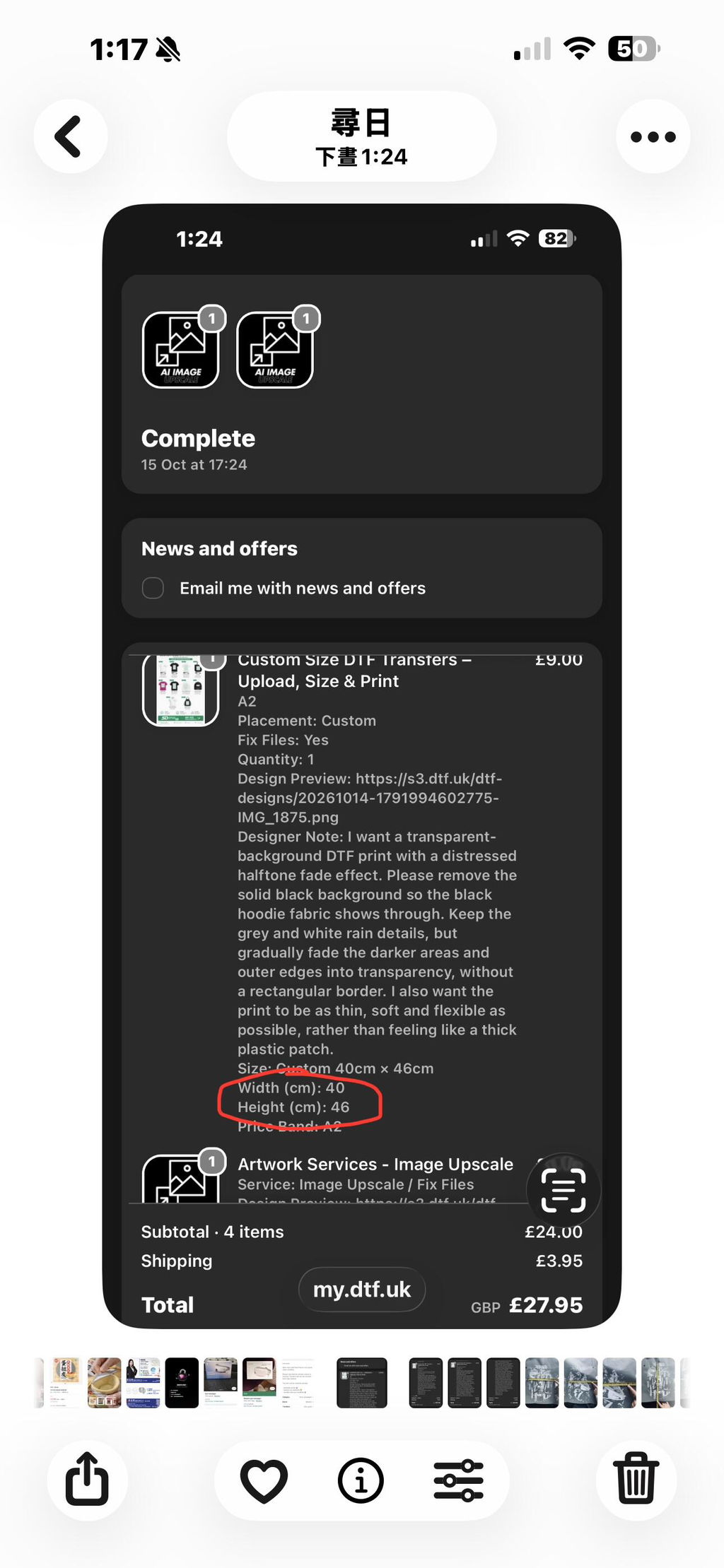
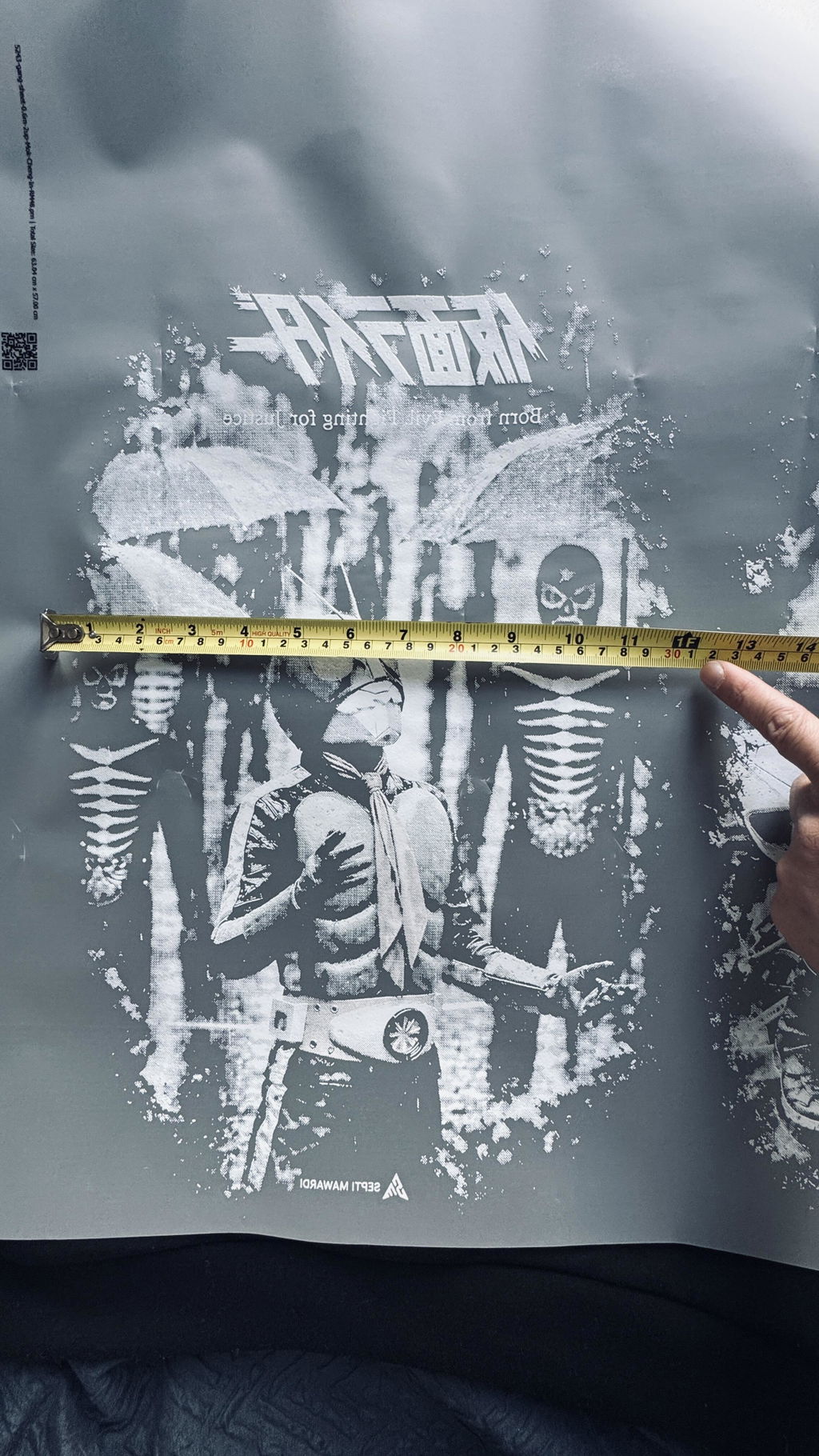
📷 Tip for following along: the four screenshots of this exact process — the untrimmed logo, the Image > Trim menu, the Trim dialog, and the trimmed result — slot in perfectly under steps 1–4.
A warning about SVG files
The simplest rule: always export as PNG
Quick checklist before you upload
- Trim the transparent pixels so the canvas hugs the artwork.
- Export as PNG at 300 DPI, anti-aliasing off (not SVG) — keeps colour, sharp edges, and auto-removes artboard padding.
- Set your size in the builder and check the on-screen preview against the chart.
- Re-ordering? Use the same trimmed file as last time so sizes match exactly.
Not sure what size to set? Our DTF Transfer Size Chart shows the ideal longest-side measurement for every garment.
Ready to print?
Prep your file, then jump into the free online gang sheet builder and nest as many sizes as you like onto one metre of film.